![logo_master.svg]](https://support.master-hr.com/hubfs/logo_master.svg)
Set up
Open the TeamTailor portal https://app.teamtailor.com/
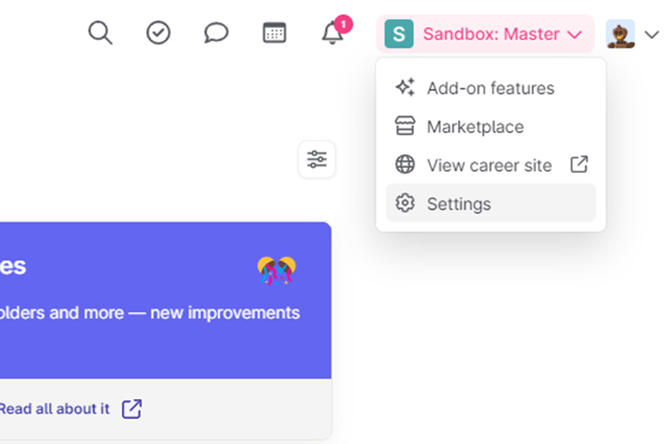
Click on the settings link in the customer settings menu:
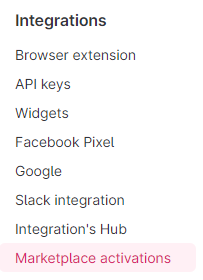
In the menu on the left scroll to the bottom where you will find the “Integrations” options and click “Marketplace activations”.
Find the integration “Master” and click the “View Settings” button

This shows a dialog with the box for the API key, enter the API “Client Secret” into the “Integration Key” text box and click “Update”
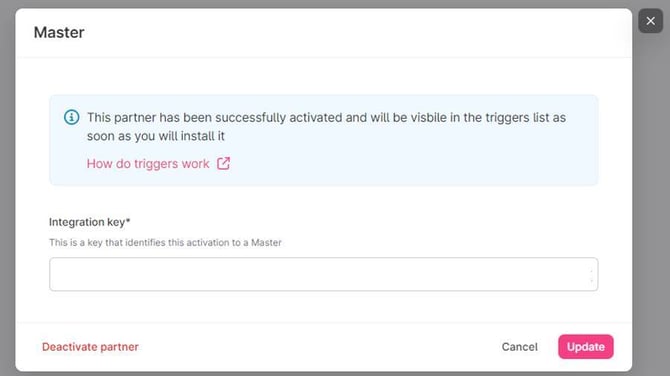
The system will now use the new key and the new integration will be setup and working.
If you do not see the option for “Master” then you will need to contact your TeamTailor account manager to activate it. Contact your Master Partner support team if you require help with this.
How to use the integration
There are 2 main ways to send tests to candidates form the Team Tailor system, either via a “Trigger” or via manual activation.
Trigger
Setting up a trigger is document in the team tailor FAQ, however it is a fairly simple setup, if you open a “Job” in team tailor then it will show you a can plan style view with the different stages of recruitment. Select the stage that you would like to send a test on (when the candidate is moved to that stage) and then click “Send Master webhook”.
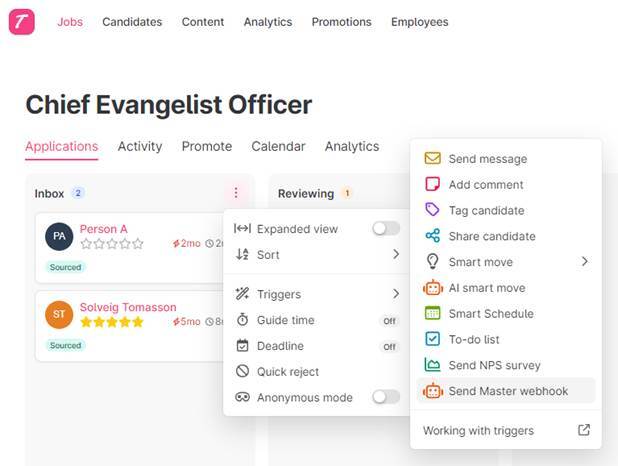
This will open the view for setting up the webhook and will communicate with our service to get the correct view. There are 2 possible scenarios for this view. The first is that the assessment has already been sent to us from team tailor, this will mean that the view will show the currently selected assessment (show in a blue info box)
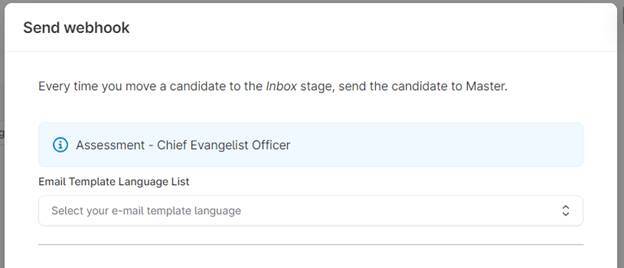
The only option you can choose in this case it the language of the invitation email that is sent to the candidate.
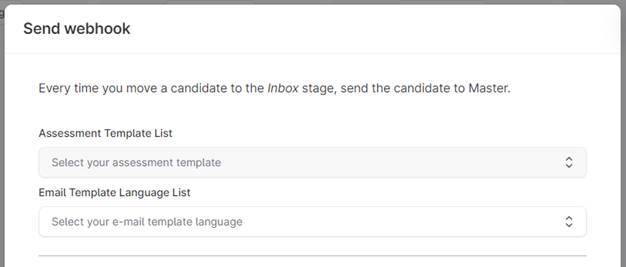
But if the assessment has not been linked to our system (which happens only if sent from teamtailor to us) then you will instead be shown a drop down containing a list of templates that you must choose from. This information is then sent to us whenever you add a candidate to that stage, and that will add the candidate to the assessment created from the template and send them the invitation email in the language chosen.
Manual Activation
The most common method of using our integration is manual triggering, the reason this is the case is that it allows more control of which candidates get tests rather than relying on automatic processing and also passes over a little more information to us about the candidate. Manual triggering is very similar to the trigger method. But is done via the candidate view.
To open click on a candidate (either from within the job view or from the candidate list view)
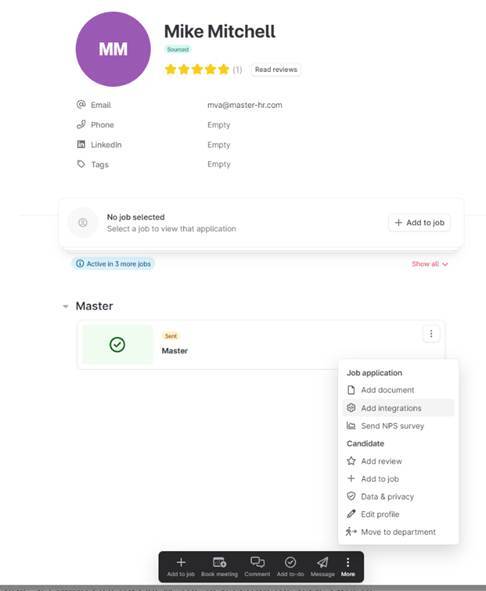
At the bottom of the view click on the “more” option, then select “Add Integrations”. If the candidate is not already added to a job, you will be asked to select which job the should be added to for the integration. If they are already in a job then you will be asked to select the integration to use
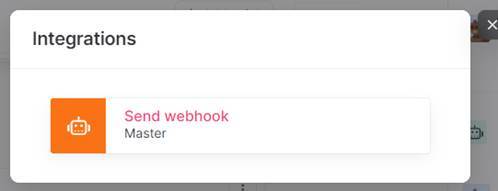
Select “Send webhook Master” and you will be shown the same options as with the Trigger, again if the job has already been sent to Master for a different candidate the name of the assessment (in the master portal) will be show in a blue info box. Otherwise you will need to select a Template for the assessment to be created from.
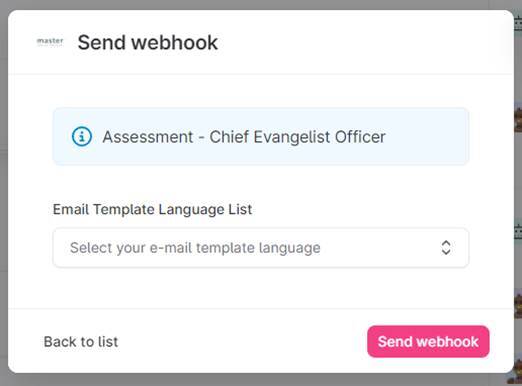
Select the language for the invitation email and click “Send webhook” this will send the information to us and send the invitation to the candidate to take the tests.
Getting Results
Results are sent back to the team tailor portal when the candidate finishes all of the tests that are required. This process is automatic and usually happens within 2 minutes of the test being completed.
The results contain the criteria match score (provided criteria are setup on the template before hand) and also a list of the reports available.
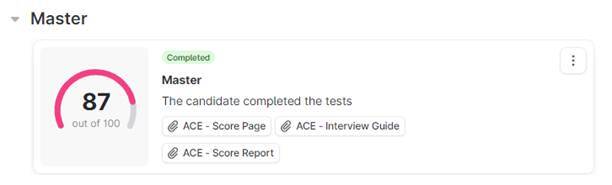
Because the links to files in team tailor don’t happen via the API authentication we provide a “magic link” to the file. When you click on one of the report links it will redirect you back to our website to download the report. The links, by default, are valid for 90 days, this can be controlled at the API key level so you can increase or reduce this validity time as you like (this can currently be done by contacting your account manager or support at Master, but in the future may be an option for you to control directly).
We use many different methods to ensure that the links are as safe as possible using this process, most of which I cannot share due to security, but you will find that you can only access the links via the team tailor portal, copying them to other systems will not work. Once the link expires it will no longer be available through team tailor but can always be downloaded again through the master portal.